Smart Key Code Saving
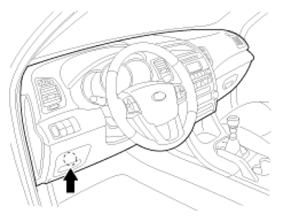
- Connect the DLC cable of GDS to the data link connector (16 pins) in driver side crash pad lower panel, turn the power on GDS.
 Courtesy of KIA MOTORS AMERICA, INC.
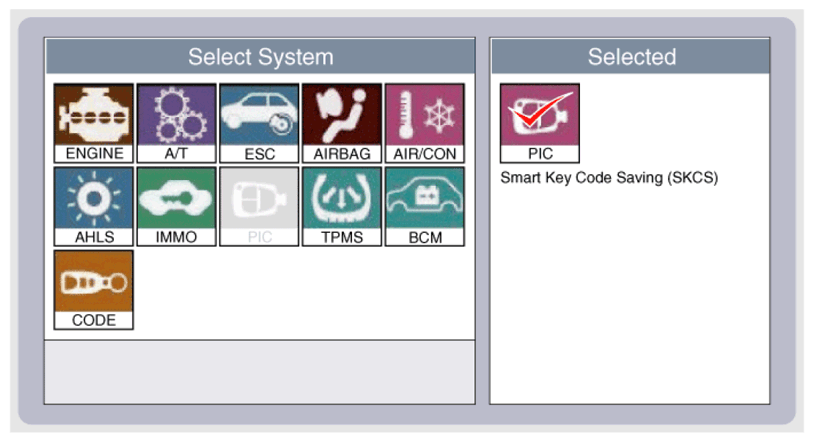
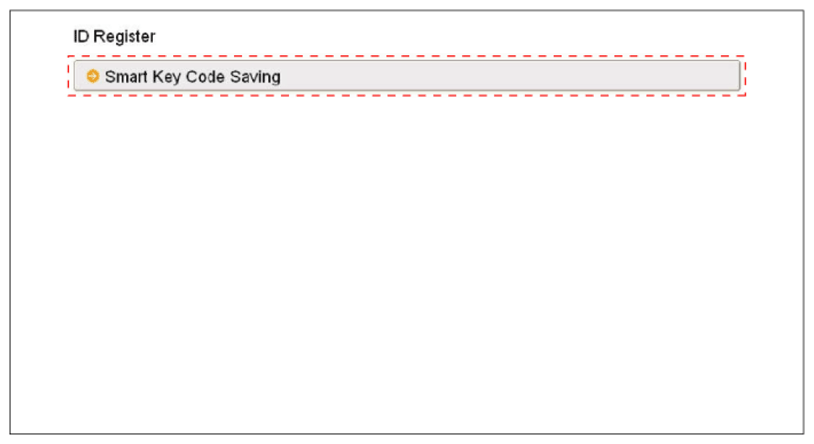
- Select the vehicle model and then do "Smart key code saving".
 Courtesy of KIA MOTORS AMERICA, INC.
 Courtesy of KIA MOTORS AMERICA, INC.
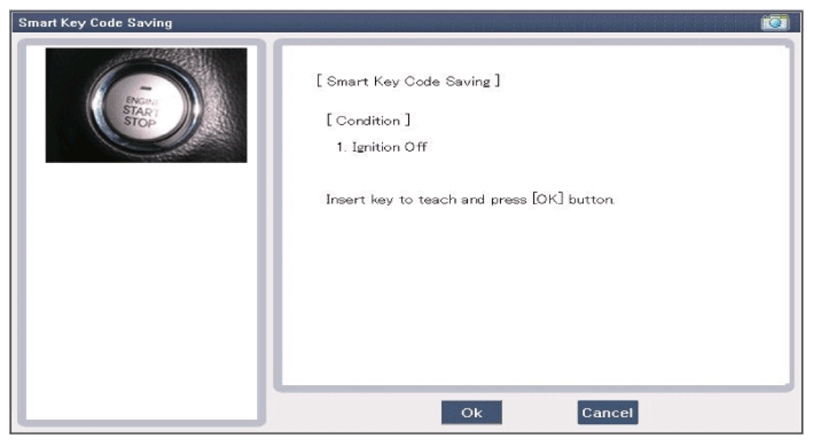
- After selecting "Smart key teaching" menu, push "Enter" key, then the screen will be shown as below.
 Courtesy of KIA MOTORS AMERICA, INC.
- After inserting the teaching key, push "ENTER" key.
- Input the "Pin code" for first key teaching.
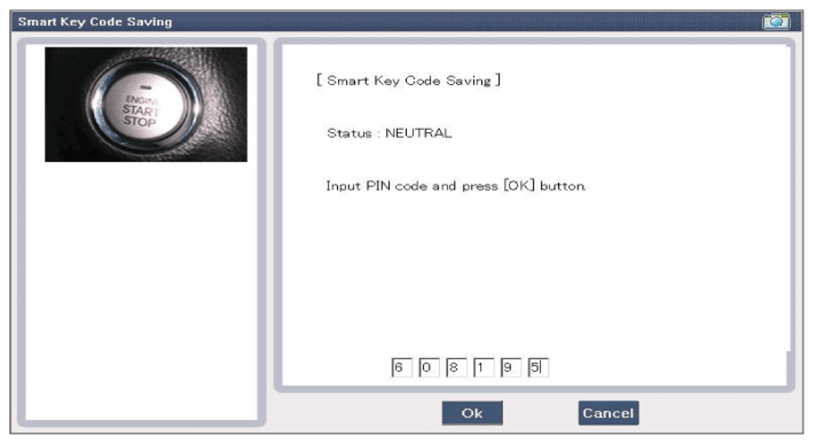 Courtesy of KIA MOTORS AMERICA, INC.
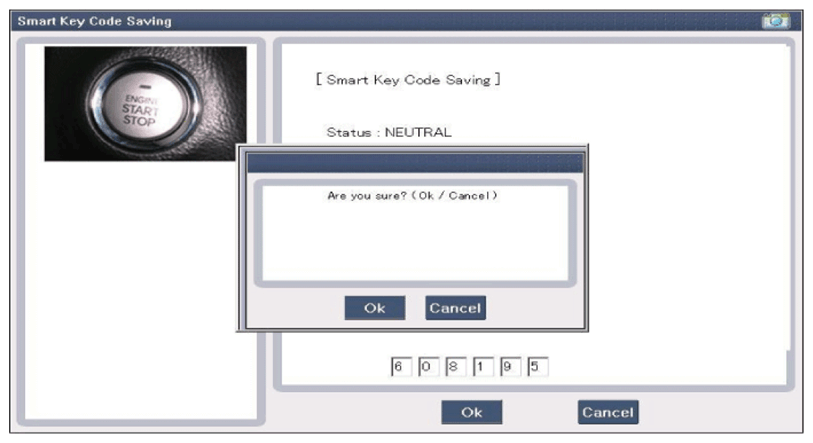 Courtesy of KIA MOTORS AMERICA, INC.
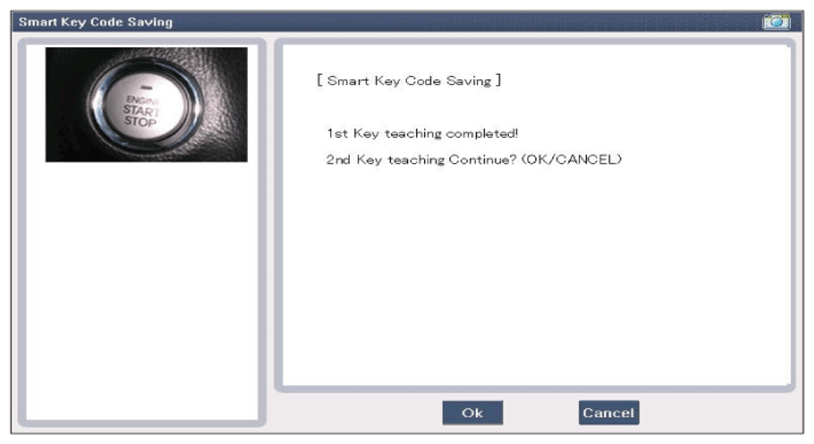
- Confirm the message "First key teaching completed".
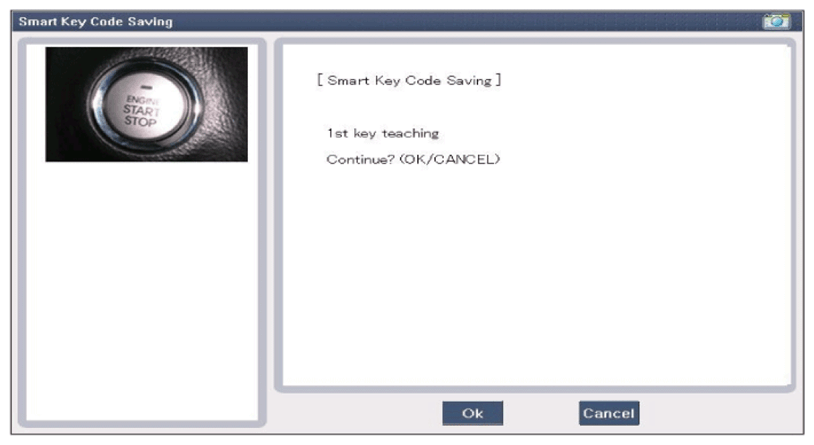 Courtesy of KIA MOTORS AMERICA, INC.
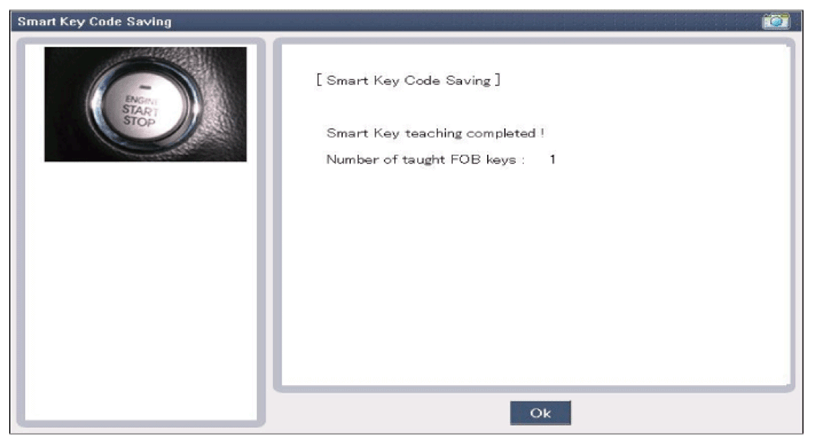 Courtesy of KIA MOTORS AMERICA, INC.
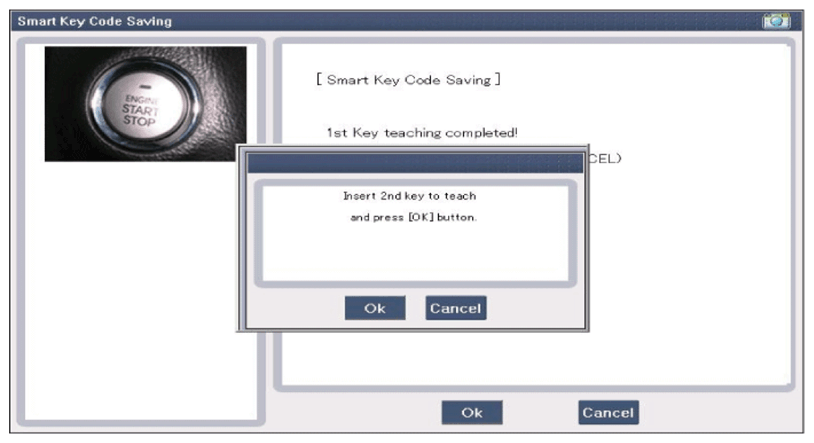
- Input the "Pin code" for second key teaching.
 Courtesy of KIA MOTORS AMERICA, INC.
 Courtesy of KIA MOTORS AMERICA, INC.
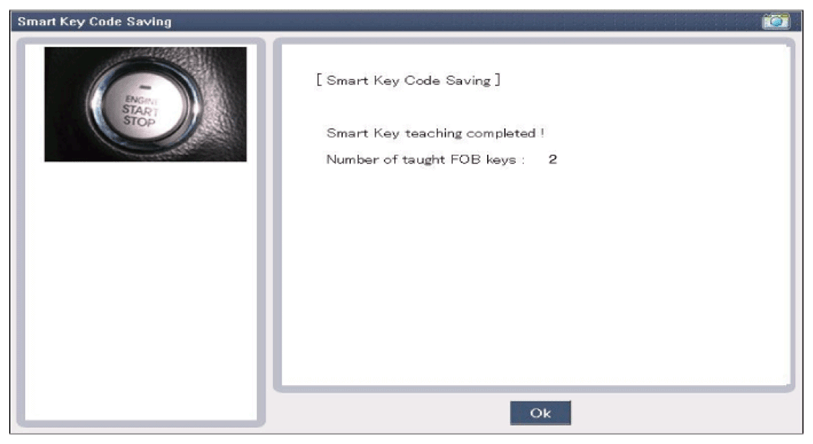
- Confirm the message "Second key teaching completed".
 Courtesy of KIA MOTORS AMERICA, INC.
- Then the screen will be shown as below when key teaching process is completed.